Quick answer: To export GitHub Copilot usage data, ask GitHub's Copilot usage metrics API for a report, for example GET /orgs/YOUR-ORG/copilot/metrics/reports/users-28-day/latest. GitHub replies with temporary download links, not the data. Download the NDJSON files (text files with one record per line) and convert them to a spreadsheet. You need the Copilot usage metrics policy switched on and an access token from an organization owner. The older Copilot metrics API closed on April 2, 2026.
This guide is for anyone who keeps getting asked, "Who is actually using Copilot?" That includes engineering leaders, productivity teams, and GitHub admins and analysts. It shows how to pull the raw numbers into a spreadsheet or a reporting database. It covers GitHub Copilot only. If you mean Microsoft 365 Copilot, use this Microsoft 365 Copilot export guide instead.
GitHub changed how this works in 2026. The old Copilot metrics API is gone. An API is a way for a program to ask another service for data. The new one hands back download links instead of the data itself. Below, you will set up access, request a report, download it, and turn it into a spreadsheet with a short Python script. You will also see what the numbers cannot tell you. We checked each step against GitHub's documentation and announcements on October 10, 2026.
GitHub offers several ways to get Copilot data. They answer different questions, so pick the one that fits yours. The table compares them.
For exporting and analyzing usage, use the Copilot usage metrics API. GitHub recommends it for new integrations and analyses. This guide builds on it and adds the seat list for license data. Open-source tools, such as the Copilot Metrics Viewer, read the same API.
People still search for the "Copilot metrics API," but that name belongs to the older API, which GitHub shut down on April 2, 2026. GitHub's documentation for the new API now sits where the old page used to be. If a tutorial tells you to request GET /orgs/{org}/copilot/metrics, it is out of date. GitHub also announced it would close two other older Copilot APIs on March 2, 2026, so check any older guide before you rely on it.
Do these four things once, before you run anything. Some need an owner in your company, so you may have to ask for help.
A policy is a setting that GitHub owners control. The reports stay unavailable until this one is on. GitHub's docs say it must be set to Enabled everywhere for the enterprise. An enterprise is a GitHub account that groups several organizations. If your organization belongs to one and the enterprise owner has chosen a setting, the organization cannot override it.
If your organization belongs to an enterprise, an enterprise owner does this. Open the enterprise on GitHub, click AI controls at the top, then Copilot in the left sidebar. Scroll to Metrics and select Enabled everywhere.
If your organization stands alone, an organization owner does this. Open the organization and click Settings. If you do not see it, open the More menu (the three dots at the end of the tab bar) and click Settings. Then click Copilot and Policies in the left sidebar. Under Features, find Copilot usage metrics and select Enabled.

GitHub changes its menus now and then. If a label differs from the ones above, look for the setting named "Copilot usage metrics."
For organization reports, sign in as an organization owner or as someone who has the "View Organization Copilot Metrics" permission. For enterprise reports, use an enterprise owner, a billing manager, or someone who has the "View Enterprise Copilot Metrics" permission.
An access token is a long code that works like a password for programs. Create one while signed in as that person:

If your organization uses single sign-on, go back to Personal access tokens. Open the Configure SSO menu next to the token and click Authorize next to your organization.

If GitHub answers a request with a 403 error, check the role, the token permission, the single sign-on step, and the policy. Organization owners can also block classic tokens, and a blocked token fails with a 403. If so, create a fine-grained token instead. Choose Fine-grained tokens in the same menu, pick your organization as the Resource owner, and add the "Organization Copilot metrics" permission with read access.
Most of the detail in the reports comes from usage reports that each developer's editor sends to GitHub. GitHub calls this telemetry. If a developer turns it off, your company's network blocks it, or the editor or Copilot extension is out of date, that person's detail is missing. Ask your IT team to let Copilot's telemetry through and to keep editors up to date.
One more limit: GitHub documents these reports for GitHub.com and GitHub Enterprise Cloud. It does not list them for GitHub Enterprise Server, the version a company hosts itself.
GitHub offers 12 reports, six for organizations and six for enterprises. GitHub calls each report's web address an endpoint. For an organization, every address starts with https://api.github.com/orgs/YOUR-ORG/copilot/metrics/reports/. For an enterprise, it starts with https://api.github.com/enterprises/YOUR-ENTERPRISE/copilot/metrics/reports/, using the short name in the enterprise's web address. Add one of the endings from the table, which shows the organization reports.
The 1-day reports need a date in YYYY-MM-DD format added to the address, such as ?day=2026-09-30. The 28-day reports end on the latest day GitHub has finished processing. For enterprise totals, the endings are enterprise-1-day and enterprise-28-day/latest. A pull request is a proposed code change that waits for review. GitHub's data reference lists every field in the reports.
The export takes two requests, because GitHub does not return the data directly. The first request returns download links. The second downloads the files those links point to. Steps 1 and 2 do this by hand so you can see what happens. Step 3 does everything with one script.
Open a terminal: Terminal on a Mac, or PowerShell on Windows. Replace YOUR-ORG with your organization's name, which is the part after github.com/ in its web address. Paste your token where it says paste-your-token-here, then run both lines. On a Mac:
On Windows, use PowerShell and type curl.exe, not curl. In Windows PowerShell, curl can be a shortcut to a different command:
Each -H part sends one extra piece of information with the request: the reply format you want, your token, and the API version. The version part is optional. Without it, GitHub uses version 2022-11-28. The latest is 2026-03-10, and GitHub's current Copilot examples use it, so this guide does too.
GitHub replies with a short message that lists the download links and the dates the report covers. The dates below are examples:
For a single day, use a one-day report and add the date to the address, for example users-1-day?day=2026-09-30. For the organization one-day reports, GitHub's documentation also lists an empty reply (code 204), so your code should be ready for no content. If you get a 403, go back to the setup steps. If you get a 404, check the spelling of the organization name and the report ending.
Each link points to an NDJSON file, which is a plain text file with one record on every line. GitHub says the links are signed, so each one carries its own permission to download. They expire after a limited time, but GitHub does not say how long. Download each file right away instead of saving the links for later. The list can hold more than one link, so download every one. On Windows, type curl.exe instead of curl.
Reading NDJSON by hand is slow. This Python script requests the report, downloads every file, and saves two CSV files. A CSV is a spreadsheet file that opens in Excel or Google Sheets. One has a row per user. The other has a row per user and feature. Before you run it:
When it works, the script prints how many user rows it saved, for example 412 user rows written. Two files appear in the same folder: copilot-usage.csv and copilot-usage-by-feature.csv. Open them in Excel, or in Google Sheets with File, then Import. For a first look, sort copilot-usage.csv by user_initiated_interaction_count, largest first, to see who uses Copilot most.
Why two files? Each record holds lists, such as totals_by_feature and totals_by_ide, and a spreadsheet cell cannot hold a list. The first file keeps the single-value fields. The second spreads one list into rows. To do the same for another list, call explode(rows, "totals_by_ide"). The script also unpacks the 28-day organization totals.
The 28-day reports only look back 28 days, so a longer record means saving each day yourself. GitHub's docs say the enterprise totals and enterprise per-user daily reports start on October 10, 2025 and reach back up to one year. Organization reports start on December 12, 2025, and the docs state no limit for how far back they go, so do not count on it. Download each day on a schedule and store the rows in a database. This loop reuses the script above:
A day's numbers appear within two full days after that day ends. They usually settle within three, so download the last few days again each time.
GitHub publishes how it defines these numbers, so use the same definitions to match its dashboard. Unless noted, the column names below are in the CSV files from Step 3.
Active user. GitHub's reconciliation guide treats a user as active on a day when user_initiated_interaction_count is above zero. That field counts prompts a person sent to Copilot. Opening the chat panel or switching modes does not count. Your count can differ from daily_active_users in the organization report, because GitHub also counts users it identifies from its own servers when their editor sends nothing.
Acceptance rate. GitHub divides code_acceptance_activity_count (suggestions or code blocks accepted) by code_generation_activity_count (suggestions or code blocks produced). In copilot-usage.csv, those two columns cover every Copilot feature together, including code copied or applied from chat. To measure inline completions only, open copilot-usage-by-feature.csv, keep the rows where feature is code_completion, add up both columns, and divide accepted by produced.
Lines of code. loc_added_sum counts lines actually added in the editor, including lines added by Copilot's agent and edit modes. loc_suggested_to_add_sum leaves agent edits out. Added lines can therefore exceed suggested lines, so dividing one by the other does not give a clean acceptance rate.
Adoption depth. GitHub sorts users into phases in the ai_adoption_phase field. Passive users show as No Cohort. Phase 1 means code completions or agent edits. Phase 2 means one of Copilot's agent features that run on GitHub, such as the cloud agent (it opens pull requests), code review (it reviews them), or the command-line tool (CLI). Phase 3 means two or more of these features, or the GitHub Copilot app. A user needs at least two active days in the last 28 on a feature to count. Passive does not mean inactive, because someone who only asks questions in chat can land there.
Licenses nobody uses. The usage reports do not include license data. GitHub calls a license a seat. To list your seats, send GET /orgs/YOUR-ORG/copilot/billing/seats with the same token and headers as in Step 1. Only organization owners can view the seat list. GitHub's seat documentation explains how to get the next pages of a long list. GitHub marks the request as a public preview that can change. Then compare the list with copilot-usage.csv to see who has a seat but no activity.
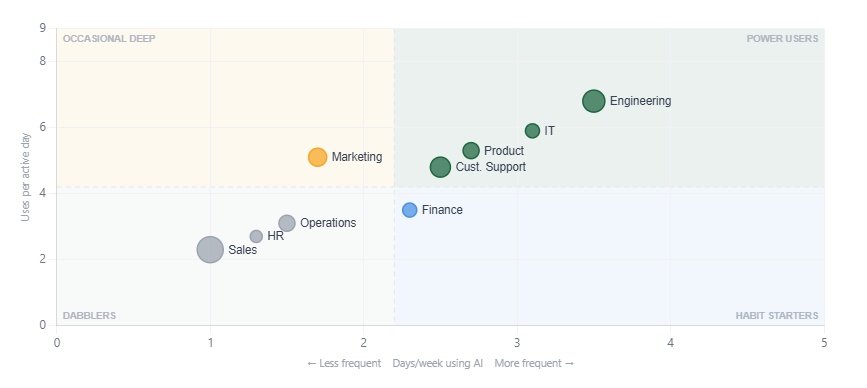
A count of active users hides depth. To see depth across groups, plot how often people use AI against how much they use it on the days they do. Worklytics, for example, draws this chart by department in its sample report. It is a different view from GitHub's phases, so do not mix their numbers.
The old Copilot metrics API had a request for a single team, GET /orgs/{org}/team/{team_slug}/copilot/metrics. The new API has none. Instead, GitHub gives you two daily reports, and you match them yourself. user-teams-1-day lists which teams each person is on. users-1-day lists what each person did. Because you request both for one day and one organization, matching on user_id is enough. The script below, saved next to copilot_export.py, adds up each team's numbers for one day and saves copilot-usage-by-team.csv. Change DAY to a date that has finished processing, then run python team_report.py in the same terminal window where your token is set (python3 on a Mac, py on some Windows setups).
Watch for three traps:
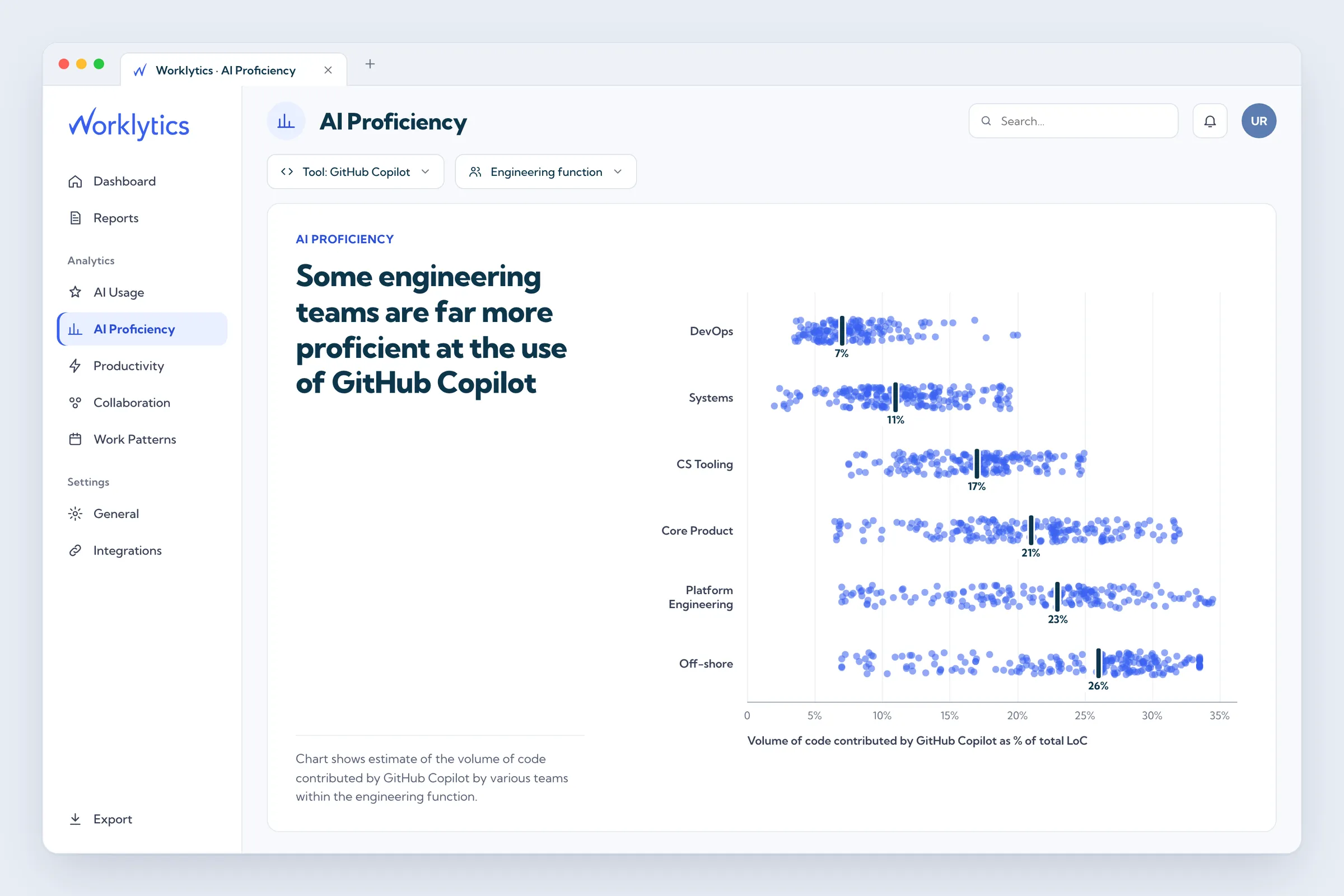
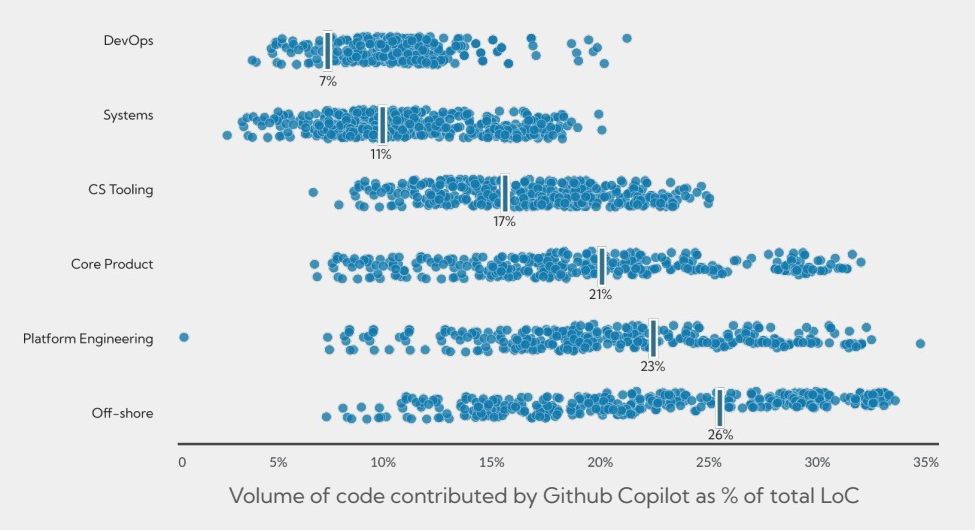
Per-user files name each developer in the user_login column. Share them only with people who need them, and report by team where you can. Once you have team totals, compare the teams. Worklytics' sample report shows one way: an estimate of the share of each engineering team's code that comes from GitHub Copilot.
Treat the export as a record of what editors report to GitHub, not as a measure of results. These limits matter most:
If your developers use more than one AI coding tool, the Copilot export covers only one of them. It says nothing about Cursor, Claude Code, or ChatGPT, and each of those has its own export with its own columns. We cover two in separate guides: how to export Cursor usage data and how to export Claude Code usage data.
To compare tools fairly, use the same meaning of "active" for every tool. For example, count someone as active when they used the tool on at least two days in 28. GitHub uses the same test for its own adoption phases. Then put every tool's numbers side by side.
Worklytics, for example, brings usage from tools such as GitHub Copilot, Cursor, Claude, ChatGPT, and Gemini into one place. In its sample report, every tool gets the same columns. They are weekly active users, share of the workforce, days per week, uses per active day, and the change over 14 weeks. A last column labels each tool core, habitual, specialist, or exploring.
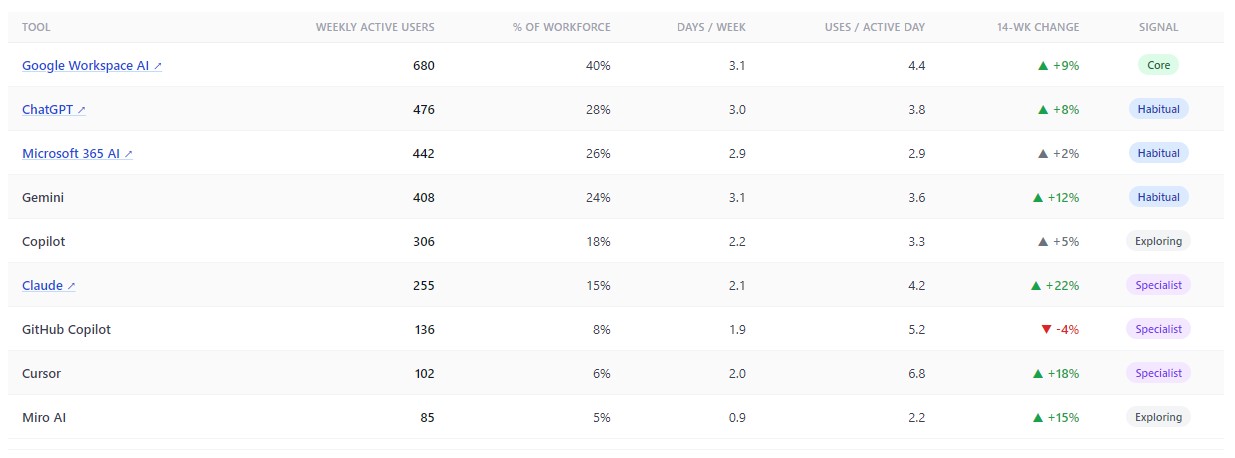
You can build the same table from the CSV files in this guide and the other tools' exports. Worklytics can also send its combined data to your own data warehouse, such as Snowflake or BigQuery. Then Copilot sits next to your other tools and your HR and delivery data.
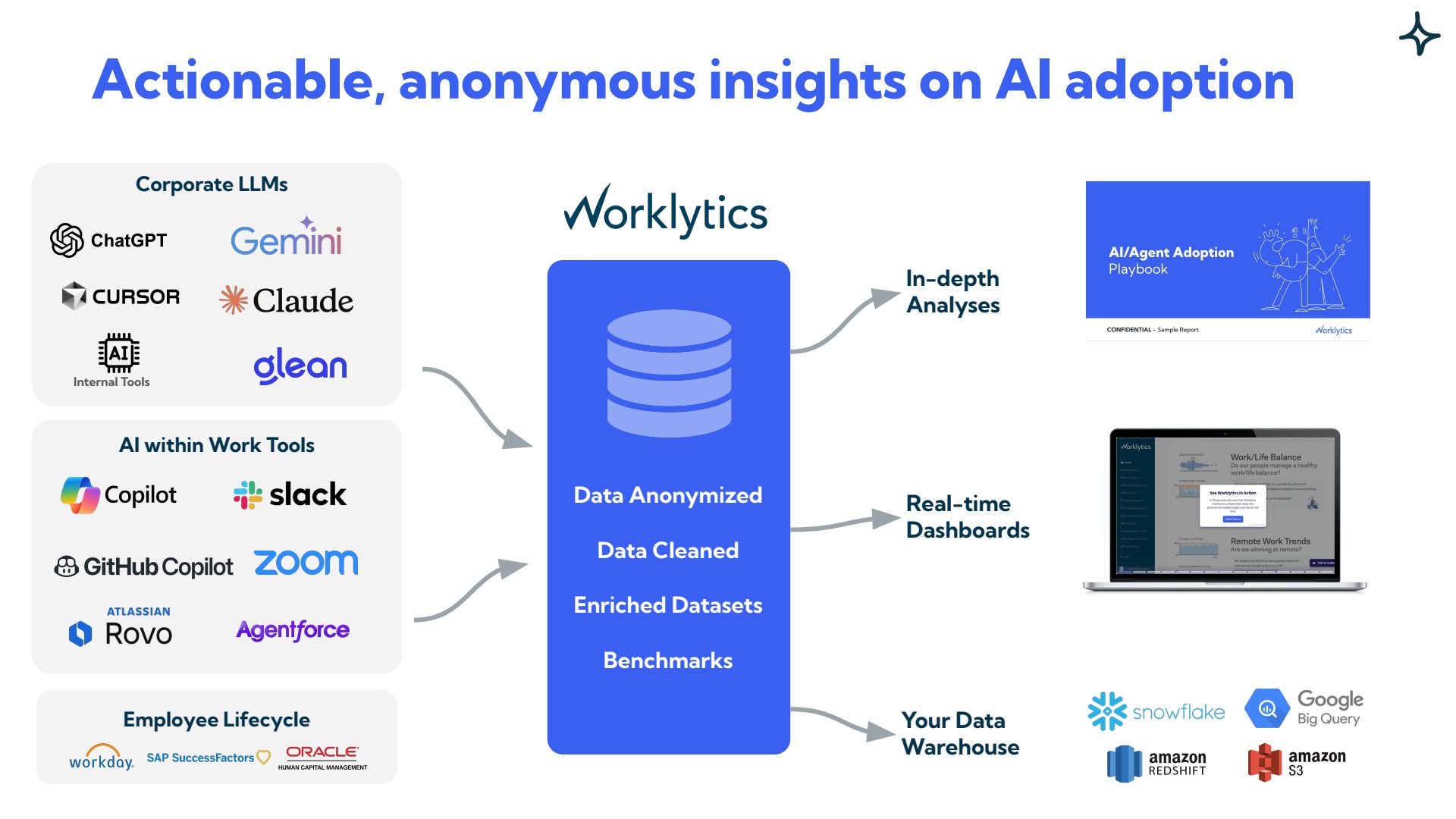
Two cautions apply to any tool, Worklytics included. The Copilot numbers still start from what GitHub records, so the limits above apply. And reports on individual people need care. Worklytics' AI adoption dashboard reports at team and department level from anonymized data. It looks at usage metadata, such as how often tools are used, not the content of prompts.
GitHub's organization and repository reports include pull request numbers. The reports count pull requests created, reviewed, and merged, and give the typical (median) time from creation to merge. They also count pull requests that the Copilot cloud agent created and pull requests that Copilot code review looked at. Use them to see how the flow of pull requests changes as Copilot use grows.
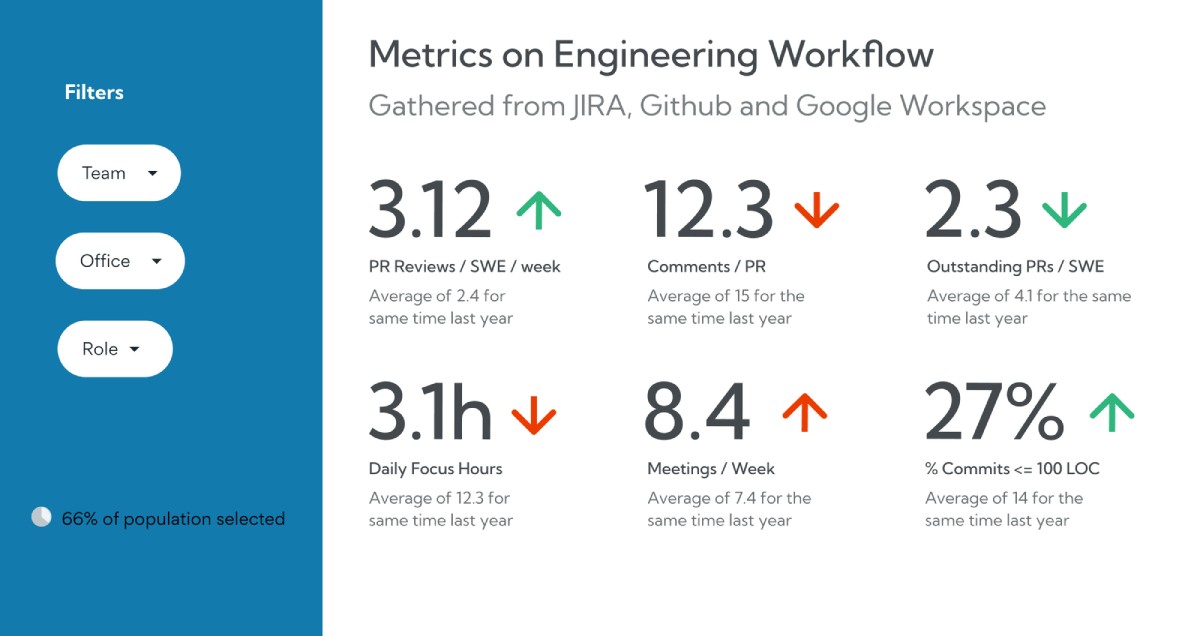
The better question is whether teams that use Copilot more deeply deliver differently from similar teams that use it less. Answering it takes data from outside the Copilot reports. Worklytics' sample engineering dashboard shows what that can include. It lists pull request reviews per engineer, comments per pull request, outstanding pull requests, focus hours, and meetings. The data comes from Jira, GitHub, and Google Workspace, and each number is compared with the same time last year. Its GitHub analytics integration covers the GitHub side.
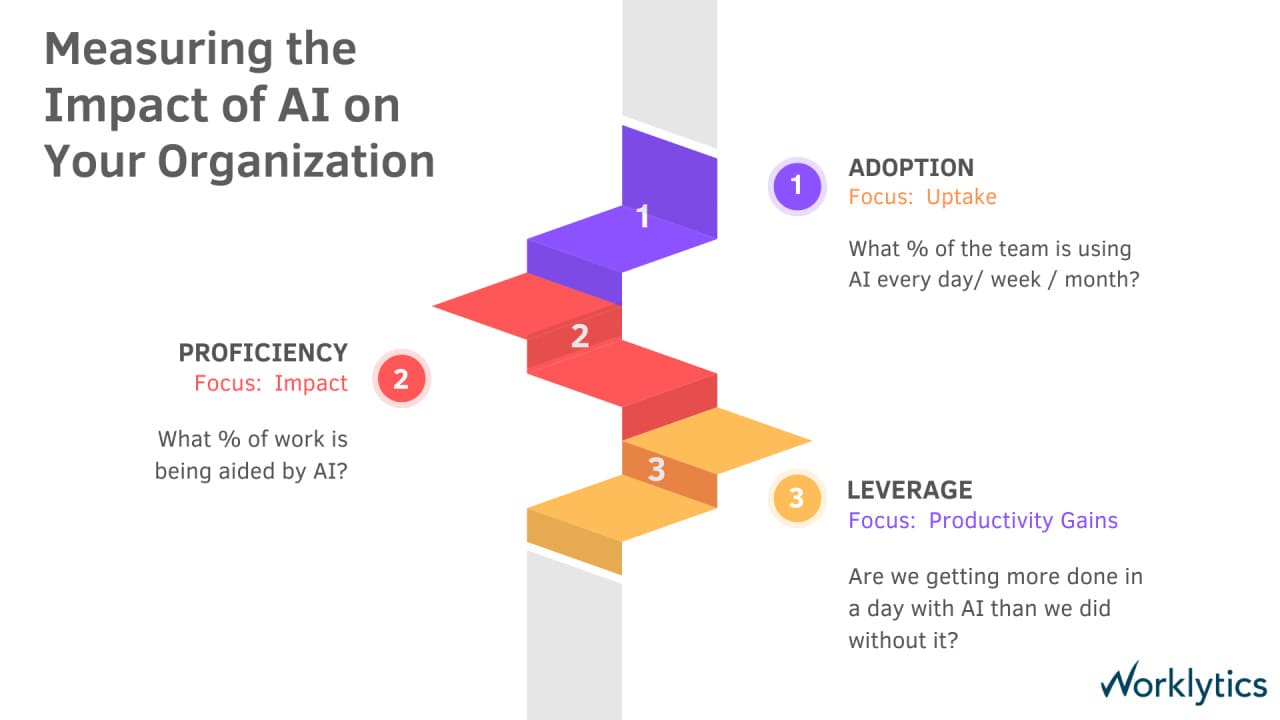
Worklytics frames the whole question in three steps. The first, adoption, asks what share of the team uses AI every day, week, or month. The second, proficiency, asks what share of work AI helps with. The third, productivity gains, asks whether people get more done in a day with AI. The Copilot export answers the first step. It gives a partial view of the second, through lines of code, and only a rough view of the third, through pull request numbers. Our guide to AI adoption KPIs covers the same ground as three questions: is AI being used, is it used well, and is it worth it.
Keep one caution in mind: teams that adopt early can differ in other ways. A gap between groups is a reason to look closer, not proof that Copilot caused it.
Yes, under a new name. The Copilot usage metrics API replaced the older Copilot metrics API, which GitHub shut down on April 2, 2026. The new API gives organizations and enterprises temporary download links to NDJSON reports.
GitHub's documentation says the enterprise totals and enterprise per-user daily reports start on October 10, 2025 and can reach back up to one year. Organization-level reports start on December 12, 2025, and the documentation states no limit for how far back organization daily reports go. The 28-day reports cover only the latest 28 days, so save each day if you want a longer record.
The usage metrics API returns NDJSON, not CSV, and the script in this guide converts it. The Copilot usage dashboard can also export NDJSON reports. GitHub offers a separate CSV, the Copilot activity report, which covers license usage and which organization and enterprise owners can download from GitHub's settings.
Check four things. First, the "Copilot usage metrics" policy must be switched on. Second, the day must have finished processing, which usually takes two to three full days. Third, developers need usage reporting (telemetry) turned on and their editors kept up to date. Fourth, GitHub said on October 6, 2026 that agent activity from some editor versions is left out until developers update. A 204 reply on an organization one-day report means GitHub returned no content for that day.
GitHub does not publish a team report. Download the user-teams-1-day and users-1-day reports for the same day, match rows that share the same user, and total the results by team. Teams with fewer than five seated Copilot users are left out.
Yes, in separate fields. CLI activity appears in daily_active_cli_users and totals_by_cli, and it does not count toward editor-based active users. The Copilot cloud agent and Copilot code review have their own user counts, and pull requests they create or review have their own fields.
If you want Copilot next to your other AI tools and your delivery data without building it yourself, the Worklytics AI adoption dashboard is one place to start. It starts from what GitHub records, so the limits above still apply. Run the scripts in this guide first and look at your own numbers.