
To optimize ChatGPT Enterprise usage, find the seats nobody uses, see which teams use ChatGPT and get value from it, move seats from idle users to people who need them, and put training where adoption stalls. Most of the data you need is already in ChatGPT Enterprise: seats purchased, enabled and active, plus per-user activity you can export (OpenAI).
This guide is about acting on that data. If you still need to set up tracking, start with our comparison of 6 ways to track employee ChatGPT use and our guide to building a ChatGPT usage dashboard.
The Users section of ChatGPT Enterprise workspace analytics shows seats purchased, seats enabled, active users and pending invites (OpenAI). The gaps between those numbers show where spend is wasted, and each gap needs a different fix.
| Gap | How to spot it | Usual fix |
|---|---|---|
| Purchased but not assigned | Seats purchased minus seats enabled | Assign from a waitlist, or reduce at renewal |
| Invited but never used | Pending invites, or users with no activity since they were invited | Send a reminder plus onboarding. Reclaim if still unused after a set period |
| Used, then stopped | Users whose last active day is weeks or months ago | Check in with the team. Reclaim if there is no need |
| Active but shallow | Few messages per week, no GPTs or projects | Training and team-specific use cases, not removal |
Export the Users report from workspace analytics (Workspace settings > Workspace analytics > Export data). You can choose a custom range of up to 12 months. These columns matter most (OpenAI):
Then sort users into two lists. Never activated: for example, invited more than 30 days ago and no activity since. Lapsed: for example, active before, but not in the last 60 days. These thresholds are examples, not OpenAI guidance, so pick the ones that fit your rollout and write them down.
To run this check every week without manual exports, use OpenAI's Daily Usage API, which returns one row per user per day with chats, messages and credits (Admin API reference). One caution from OpenAI: the API counts recorded activity, which can include automated or background activity, so it is not a pure measure of human engagement.
A workspace-wide active rate hides the real story. Calculate two numbers for each team: activation rate (activated seats divided by assigned seats) and weekly active rate (weekly active users divided by assigned seats).
Workspace analytics can filter by group, using SCIM groups from your identity provider or groups created in ChatGPT. The Users export also includes each person's groups and their self-entered department (OpenAI). For reliable team and manager views, join the export to your HR system instead of relying on self-entered departments.
Report teams, not individuals. Set a minimum group size (for example, 5 people) and leave out smaller groups. OpenAI does the same in Task insights, where SCIM groups with fewer than 10 members are hidden.
High activity is not the same as value, so look at depth and outcomes together:
Teams with high depth, shared GPTs and better outcomes are the ones to learn from. Their workflows are the playbook for the rest of the company.
Reclaiming seats saves money. Enablement is what raises the value of the seats you keep.
For a stage-by-stage view of moving teams from early adopters to the late majority, see the ChatGPT adoption curve.
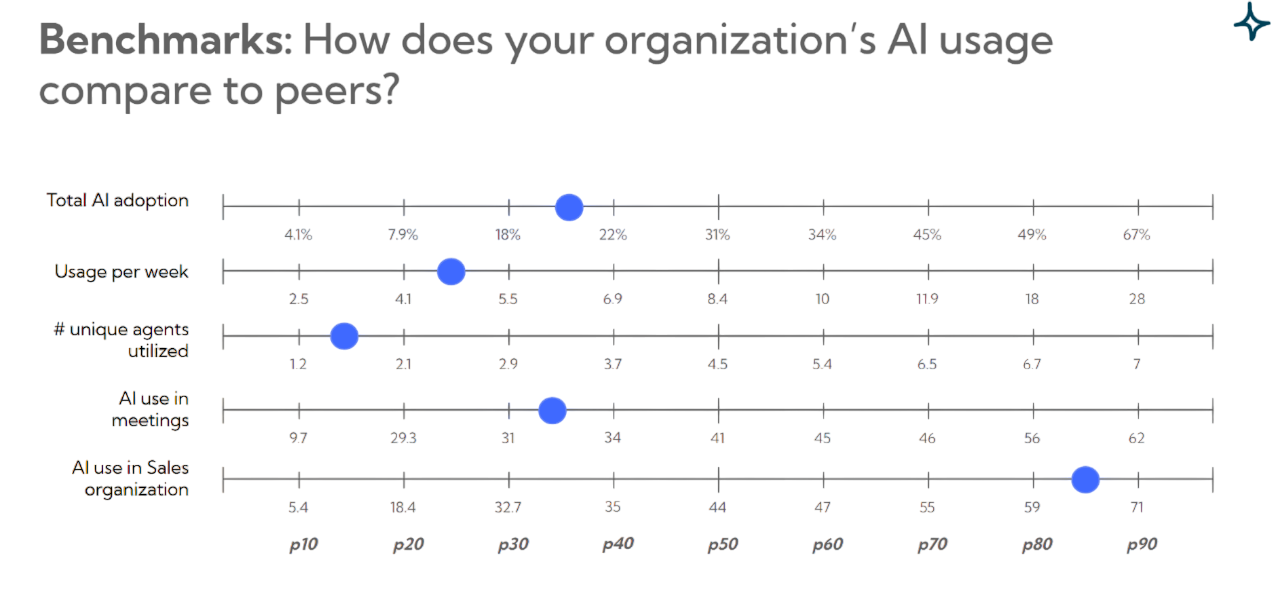
Pick three or four numbers and review them monthly with IT, HR and a few department heads: activation rate, weekly active rate by team, share of inactive seats, and messages per weekly active user. Workspace analytics compares your activation rate, weekly active users per activated user and messages per weekly active user with an industry median you choose, which gives you a starting benchmark (OpenAI). Measure, make one change, then measure again.
Worklytics connects to ChatGPT Enterprise through OpenAI's Compliance API and turns each prompt into light signals: prompt count, prompt length, conversations, files attached and which custom GPT was used. It counts only prompts people send, not AI responses, and does not store message text. From there:
See the Worklytics AI adoption dashboard, or book a demo.
Export the Users report from workspace analytics (Workspace settings > Workspace analytics > Export data) for the last 30 to 90 days. Filter for users where is_active is false, and use last_day_active to see when each person last sent a message. For a recurring check, pull per-user daily rows from OpenAI's Daily Usage API instead.
Yes. Owners and admins can remove a member in Workspace settings > Members and invite someone else, and members managed through SCIM are removed in your identity provider. Whether removing users lowers your bill depends on your contract, so check your Order Form or ask your OpenAI account team before renewal.
There is no single target that fits every company. Workspace analytics compares your activation rate, weekly active users per activated user and messages per weekly active user with an industry median you choose, which is a better reference point than a generic number. Set targets per team, because roles differ in how much they need ChatGPT.
Do both, in that order. Reclaim seats that were never activated or have been idle for months, since those users rarely start without help. For teams where people signed in but use ChatGPT rarely, try targeted training and team-specific use cases first, then review again after 30 to 60 days.
It varies by company, so measure it rather than assume it. Compare teams on messages per weekly active user, power-user share, use of custom GPTs and projects, and Impact survey results, then check whether high-use teams also show changes in outcomes such as cycle time or meeting load. Workspace analytics shows the usage side; outcome data has to come from your other systems.