Remote work has made video meetings on platforms like Zoom a daily routine for millions.
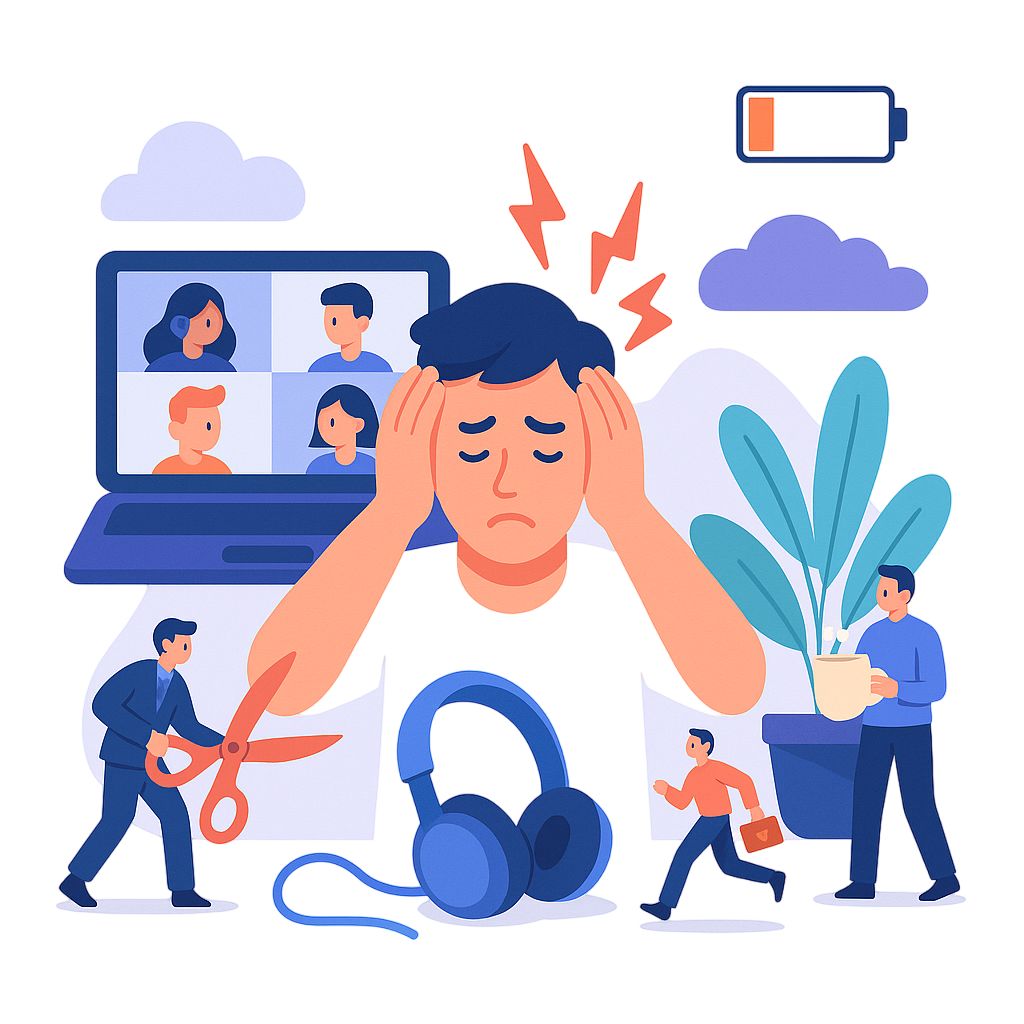
Yet, along with the convenience of connecting virtually, many professionals are feeling “Zoom fatigue” – the mental and physical exhaustion from too many video calls.
In fact, studies indicate that about 60% of remote workers report feeling drained by frequent video conferences.
Back-to-back virtual calls can fill our calendars and leave us wiped out by day’s end. If you’ve ever closed your laptop feeling spent after continuous Zooms, you’re not alone – and there are concrete reasons why this happens, as well as effective strategies to combat it.
Zoom fatigue refers to the exhaustion and strain that comes from hours of videoconferencing. While named after the Zoom platform, it applies to any video meeting tool (Teams, Google Meet, etc.) that keeps us in front of a webcam for long stretches.
Remote workers worldwide have quickly become familiar with this feeling: that uniquely drained sensation after a day full of virtual meetings.
What does Zoom fatigue feel like? People who experience it report tiredness, difficulty focusing, and irritability after video calls. You might have headaches or sore, dry eyes from staring at a screen. Mentally, you may feel socially drained – wanting to avoid more interaction after a day of nonstop video meetings. Understanding the causes of Zoom fatigue is the first step to combating it in our remote work routines.
Video meetings introduce unique stressors that don’t exist in face-to-face communication. Stanford University researchers have identified several factors that make virtual meetings so taxing on our minds and bodies:
All these factors add up. After a day of video meetings, it is normal to feel mentally drained and disconnected. Studies show many workers experience severe “Zoom fatigue,” especially women, who report more strain from constant self-view and fewer breaks. Understanding these causes helps us take steps, both individually and organizationally, to make virtual collaboration healthier and more sustainable
Excessive video meetings don’t have to be an inevitable drain. By adjusting how we work, remote teams can maintain productivity without burning out on Zoom. Here are several proven strategies to fight Zoom fatigue and keep your energy up:
Not every discussion needs to be a video call. Reserve Zoom for when collaboration is truly needed (e.g. brainstorming, team bonding, complex discussions).
For simpler updates or questions, use email, chat, or a quick phone call. Many remote employees now recognize this; 55% say most meetings “could have been an email,” suggesting huge potential to cut down unnecessary calls. Before scheduling or accepting a meeting, ask if it’s essential. By reducing the quantity of meetings, you give yourself and your team more time for focused work – and fewer Zoom hours to fatigue you.
When video meetings are necessary, try to limit their length and avoid stacking them back-to-back. Instead of defaulting to 60-minute calls, aim for 25 or 50 minutes. This gives everyone a breather to stand up, stretch, or simply rest their eyes before the next call. Many companies are adopting policies like “50-minute hours” for meetings to ensure a 10-minute break is built in. These small breaks can recharge attention and actually improve focus for the remainder of the meeting.
Ultimately, a shorter, well-timed meeting is more effective and less exhausting than a marathon session.
Video is great for seeing colleagues, but it’s also the most demanding form of communication. Give yourself permission to go audio-only at times.
If you’re on a long conference call, consider switching off your camera – you’ll feel less “on stage” and can relax your face and posture.
Similarly, if you have a one-on-one late in the day and you’re already Zoomed out, suggest a phone call instead, which accomplishes the goal without adding to your screen fatigue.
A simple but powerful tip is to use Zoom’s features to your advantage by turning on “Hide Self-View,” which keeps you visible to others while removing the distracting mirror of yourself and reducing the self-consciousness that leads to fatigue.
Second, don’t keep the video call in full-screen mode if it overwhelms you. Shrink the window or move it to the side of your screen so faces aren’t uncomfortably large.
Add movement to your video call routine. If you’re not presenting, stand up or use a standing desk instead of sitting all day. Stretch your neck, roll your shoulders, or do quick desk exercises between calls to prevent stiffness. Some teams even do “walking meetings” for one-on-ones, taking calls while walking outside. Staying active helps reduce fatigue and boosts energy and creativity.
Remote work removes natural breaks, so you have to create them. Block off hours for deep work or rest, and avoid scheduling meetings during lunch or after hours. Some teams use “No Zoom Fridays” or meeting-free blocks to help everyone recharge. Protecting your personal time and reducing nonstop video calls are key to avoiding burnout.
Trying to work on other tasks during a video call only increases fatigue and lowers focus. It also makes meetings longer when things need repeating. Close distractions and give your full attention to the meeting. If you feel forced to multitask because of too many meetings, it’s a sign to cut back. Fewer, more focused meetings lead to better engagement and less exhaustion.
Video fatigue also applies to social calls. Virtual hangouts can be fun, but they shouldn’t be mandatory. Let people choose whether to join and keep these sessions light and relaxed. Respect everyone’s need for a screen break so social time feels enjoyable instead of draining.
By following these tips, remote workers can ease Zoom fatigue. Use video only when it truly helps, and take breaks from the screen when possible. Simple habits like short pauses, sending an email instead of holding a meeting, or hiding self-view can make your day feel lighter and more productive. With these small changes, meetings become useful and energizing instead of tiring.
While personal habits help, real change happens when companies address Zoom fatigue across the whole organization. This is where Worklytics makes a difference.
Worklytics is a people analytics platform that helps teams understand and improve how they work together. It gives leaders a clear picture of meeting overload, collaboration patterns, and how video calls affect productivity. By connecting with tools like Zoom, calendars, and other apps, Worklytics turns work data into actionable insights so meetings become more efficient and less draining.
Worklytics looks at meeting and calendar data, not the content of your calls, but simple facts like timing, duration, and frequency. From there, it highlights patterns that contribute to fatigue.
You can see things like:
These insights help leaders spot early signs of burnout and take action before it becomes a bigger issue. Awareness is the first step to improvement.

Worklytics helps you define what a sustainable meeting schedule looks like. For example, it can flag if someone consistently spends more than six hours in meetings a day or attends several back-to-back calls without downtime.
When those limits are crossed, the platform alerts managers in aggregate, so privacy is always respected. This allows leaders to rebalance workloads, set meeting-free blocks, or introduce focus hours to protect their team’s time and energy.
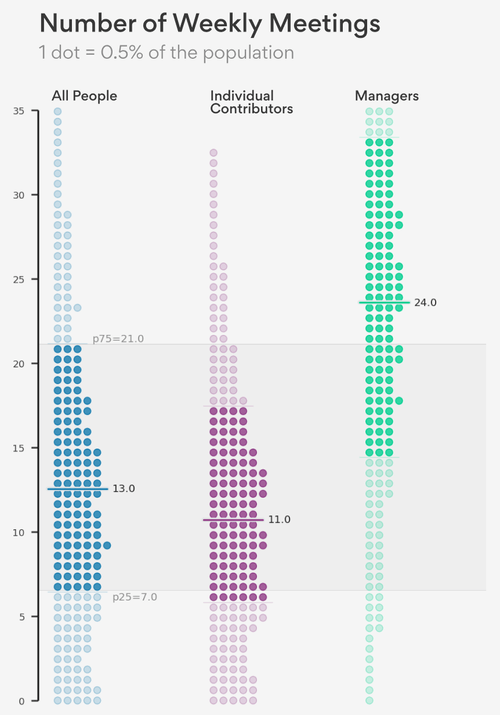
It is not just about having fewer meetings. Worklytics also helps you understand which meetings actually add value. By linking meeting data to real outcomes like project delivery or engagement scores, it reveals which types of meetings drive results and which ones just take up time.
With this clarity, leaders can make informed decisions, such as shortening recurring calls, limiting participants to improve efficiency, or moving low-value updates to asynchronous communication. The result is fewer, more meaningful meetings that support both productivity and well-being.
Worklytics doesn’t just provide a one-time report. It continuously monitors how collaboration evolves, while keeping employee data private and aggregated.
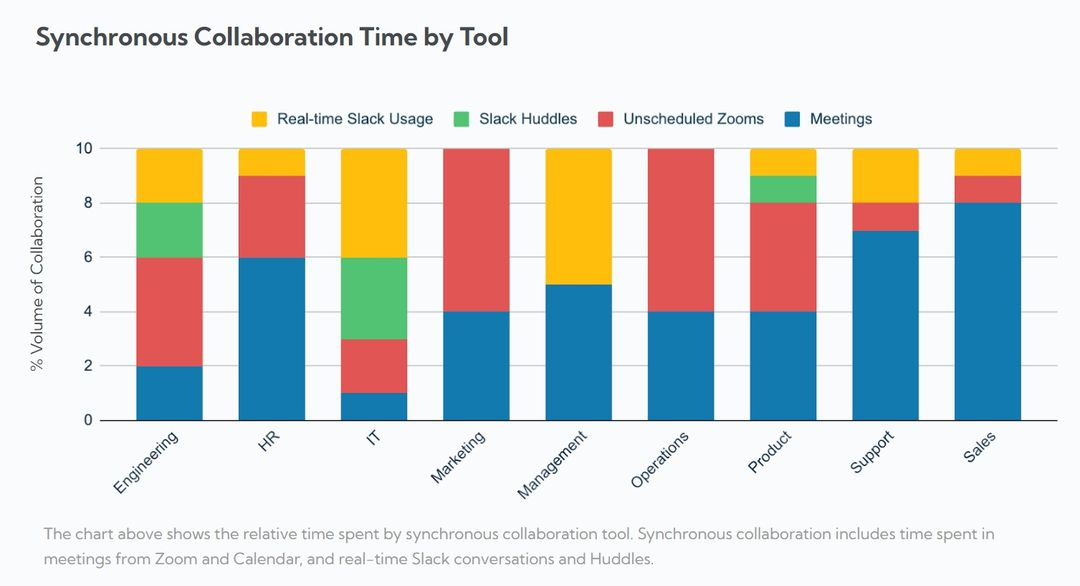
As you introduce new practices, like No Meeting Wednesdays or camera-optional Fridays, Worklytics measures the impact. You can see whether meeting hours go down, focus time increases, or team well-being improves. This creates a feedback loop that helps you fine-tune your remote work culture over time.
Companies that use Worklytics have already cut unnecessary meetings and made remote work feel lighter and more manageable. The platform works like an early warning system for Zoom fatigue, showing when and where meeting overload is happening.
Once you know the problem areas, you can coach teams to use asynchronous tools more often, redistribute workloads, or reinforce best practices like having clear meeting agendas. With Worklytics, you keep your team connected and productive without pushing them toward burnout.
Empower your team with data-driven insights that improve collaboration and protect well-being.
Discover Worklytics and start making meetings work for your people, not against them.